
How to Scan a Document With Your Phone (No App Needed)
Turn a crooked phone photo of a paper document into a clean, straightened PDF — right in your browser, no CamScanner install, no watermark.
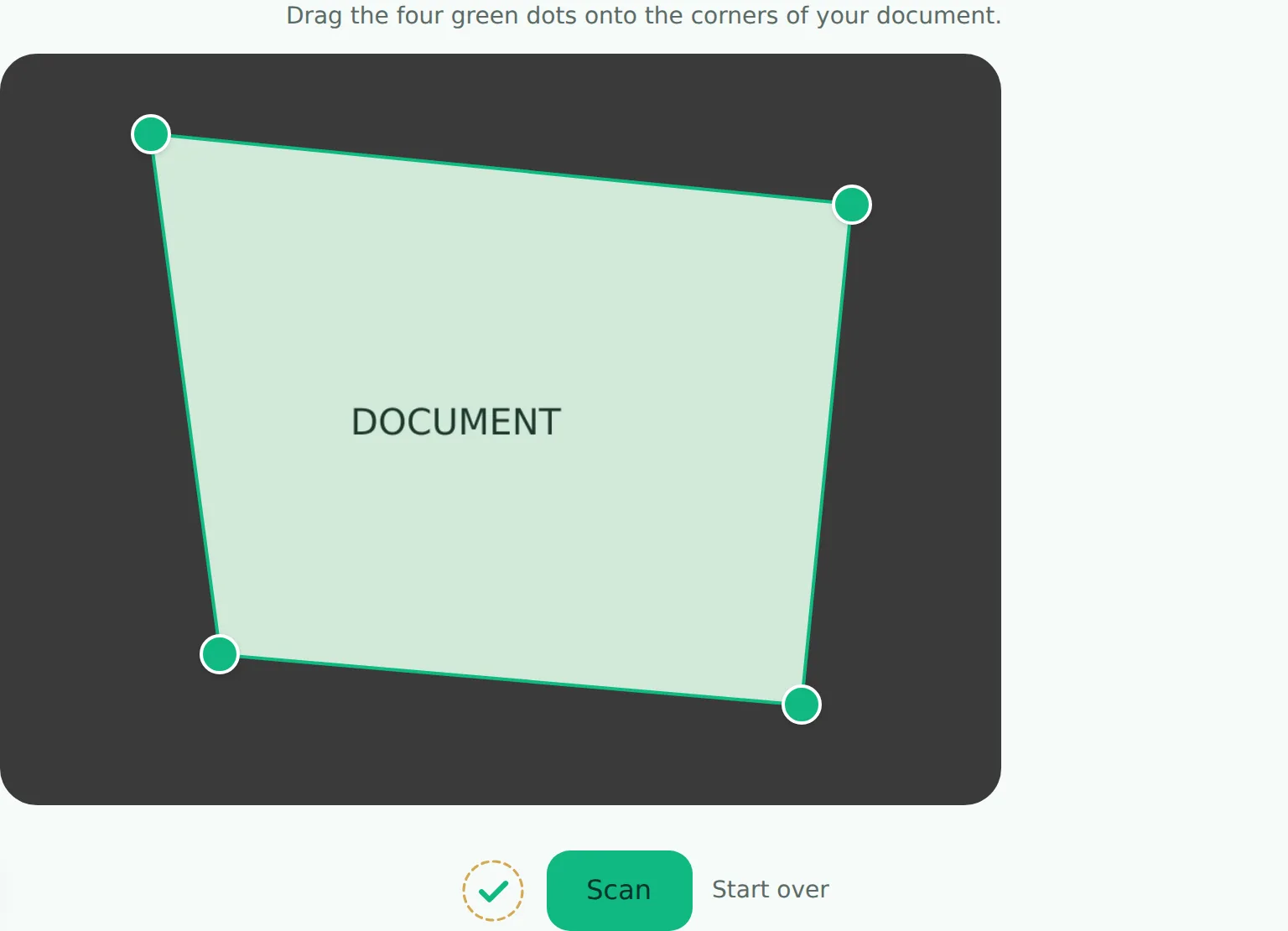
To scan a document with your phone, photograph it at any angle, then drag the four corner handles in a document scanner tool onto the actual edges of the page — it corrects the perspective into a proper rectangle, cleans up the contrast, and exports a PDF or JPG, all in your browser with no app to install and no watermark.
You need a scan of a document and you don't have a scanner — just your phone camera and the actual piece of paper in front of you. This is exactly the gap document-scanning apps exist to fill, and exactly the gap you can close without installing anything.
Why a phone photo isn't good enough as-is
A photo of a document, even a careful one, looks like a photo: taken at a slight angle, so the page reads as a trapezoid instead of a rectangle; lighting that's brighter on one side; a background — a desk, a table, whatever's around — visible around the edges. Portals and reviewers expect something that looks like it came off a flatbed scanner, not a photo of paper.
What actually fixes it
Two things, specifically:
- Perspective correction — mapping the skewed shape of the document in your photo back to a proper rectangle, so it reads flat and straight instead of tilted.
- Contrast enhancement — evening out the lighting and boosting the difference between the paper and the ink, so text reads crisp instead of washed out or shadowed.
That's what a scanner app does, and it's exactly what FileNorm's scanner does, without an app install:
- Drop your photo.
- Drag the four corner markers onto the actual corners of your document — the tool starts with a rough guess, you fine-tune it by eye.
- Hit scan. The perspective straightens out and the contrast adjusts automatically.
- Choose color or black & white, then download as PDF or JPG.
Why the corners are manual, not automatic
Automatic edge detection — having the tool guess where your document's corners are — works well when the background is plain and the lighting is even, and works poorly the moment either of those isn't true (a wooden desk with similar tones to the paper, a shadow crossing one edge). Rather than guess wrong and give you a bad scan with no way to fix it, dragging the corners yourself takes five seconds and is always accurate, because you can see exactly where the real edges are.
Color or black & white — which to pick
Color keeps stamps, colored ink, and photos on the document legible — use it for anything with color that matters. Black & white usually produces a smaller, crisper-looking result for plain printed or handwritten text, which is most administrative documents.
Where this fits with everything else
If the scanned document is one piece of a bigger dossier — alongside a photo, a CIN, a diploma — the dossier wizard walks you through preparing all of them together and packages the result into one ZIP. Use the scanner on its own when you just need one clean document, right now.