
How to Split a PDF into Separate Pages
Pulling individual pages out of a multi-page PDF, or breaking one large file into several smaller ones — the two different things people mean by 'split a PDF' and how to do each.
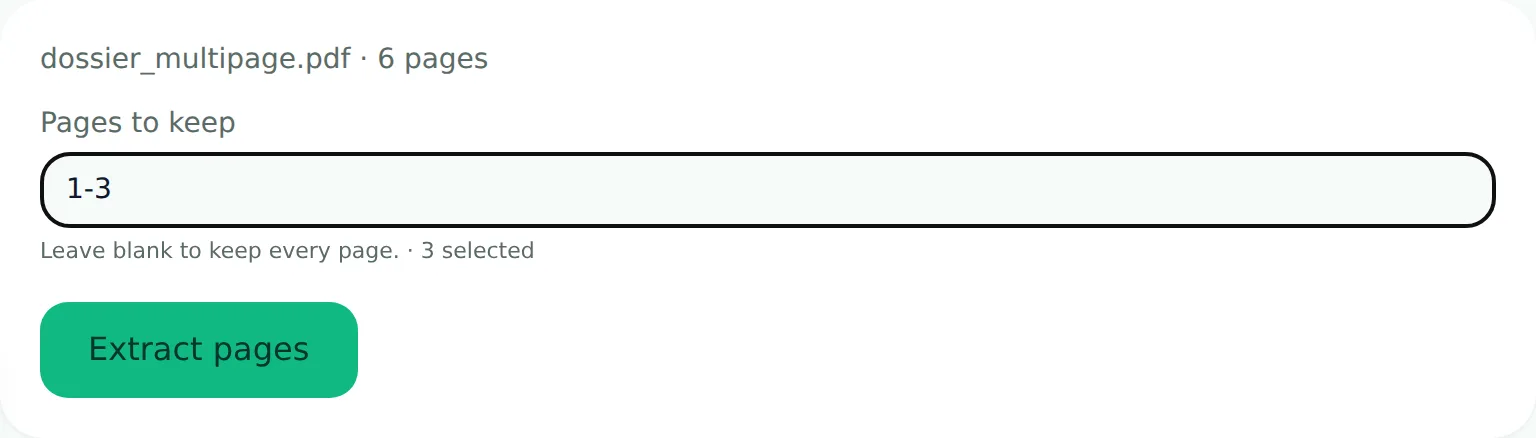
To split a PDF into separate pages, upload it to a PDF split tool and type the page numbers or range you want to pull out — it extracts exactly those pages into a new file, free and entirely in your browser. This covers both common meanings of "split a PDF": pulling out specific pages, or breaking one large file into smaller ones by running the extraction more than once.
"Split a PDF" usually means one of two different things, and the right approach depends on which one you actually need.
Extracting specific pages
If you have a 20-page PDF and only need page 5, or pages 3 through 7, you're extracting a subset — the goal is a smaller PDF containing exactly the pages you chose, in the same order, same quality.
- Split PDF — select the pages you want, get them as a new PDF (or as individual single-page files)
Common reason to do this: a scanned document that includes a cover page or extra material you don't want to submit, or a large multi-document scan that actually needs to be several separate submissions.
Breaking a large file into smaller ones by size
The other meaning: the file itself is too large for wherever it's going (an email attachment limit, a portal's upload cap), and splitting it into two or three smaller PDFs is a workaround while you figure out how to reduce the size properly.
This works, but it's usually not the best first move. Splitting a document into multiple files means the recipient now has to handle several files instead of one, which portals and forms with a single upload field often don't support at all. Before splitting for size reasons, it's worth trying to compress the PDF down to fit as one file first:
If the content genuinely doesn't compress enough (rare, but happens with PDFs full of already-compressed images or dense vector graphics), splitting into multiple properly-sized files becomes the fallback.
After splitting
If you've extracted pages from one document and need to combine them with pages from a different one — say, assembling a final submission from parts of several source PDFs — merging is the natural next step:
All of this happens in your browser; the PDF is never uploaded to process it.